Rewritten August 2026. This page previously read as a promotion for one specific product. It is now a comparison of the free PDF options that actually exist, including the ones already on your computer — which is usually the right answer.
Before installing anything: Microsoft Edge is already a capable PDF editor, and it is on every Windows machine. It fills forms, adds text, highlights, draws and signs. For most of what people mean by “edit a PDF”, that is the whole job done with nothing to download.
What Edge cannot do is change existing text in a document, merge or split files, or run OCR on a scan. That is where the rest of this guide comes in.
What “editing a PDF” actually means
The word covers several very different tasks, and the difficulty varies enormously between them:
| Task | Difficulty | Free options |
|---|---|---|
| Fill in a form | Easy | Edge, any browser, most viewers |
| Annotate, highlight, comment | Easy | Edge, Preview on macOS |
| Sign a document | Easy | Edge, Preview |
| Add text on top | Easy | Edge, LibreOffice Draw |
| Merge, split, reorder pages | Moderate | Stirling PDF, PDFsam, PDF24 |
| Change existing text | Hard | LibreOffice Draw, with caveats |
| OCR a scan | Hard | OCRmyPDF, Stirling PDF |
The row that surprises people is “change existing text”. A PDF is a description of where marks go on a page, not a document with editable paragraphs. Every tool that offers text editing is reconstructing something that was never really there, which is why results are inconsistent — and why free tools struggle most here.
Already on your computer
Microsoft Edge — Windows
Right-click any PDF → Open with → Microsoft Edge. The toolbar gives you text, drawing, highlighting and erasing, and Save as writes a new file.
It also reads PDFs aloud, which is genuinely useful for proofreading.
Preview — macOS
Preview does everything Edge does plus page reordering, deleting pages, and merging by dragging pages between open documents. It is one of the more underrated pieces of software Apple ships.
LibreOffice Draw — free, all platforms
The free option that genuinely edits existing text. Open a PDF in Draw and each text block becomes an editable object.
The caveat is real: layout often shifts, and fonts may be substituted if the original is not installed. It works well for a short document and poorly for a complex one. Try it before relying on it for anything that must look exactly right.
Free tools worth adding
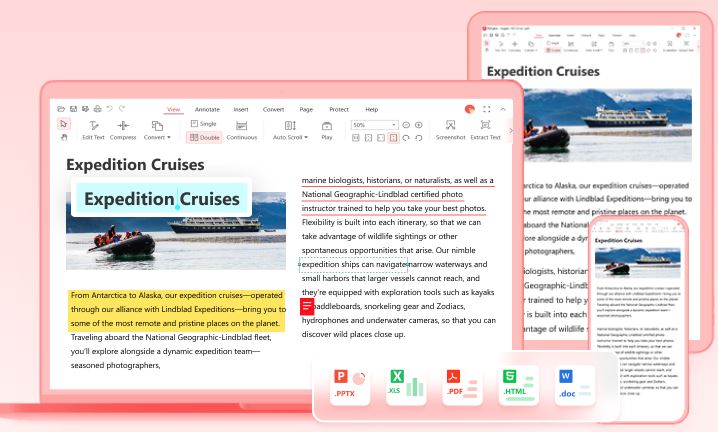
- Stirling PDF — open source, and can be run locally so files never leave your machine. Merge, split, rotate, compress, convert, OCR. The best free option for page-level operations.
- PDFsam Basic — open source, focused on splitting, merging and rotating. Small and reliable.
- PDF24 Creator — free for Windows, wide range of tools, works offline.
- OCRmyPDF — open source, adds a searchable text layer to scans. Command line, and excellent at the one thing it does.
- PDFGear — free, includes an AI assistant. Verify the publisher and current terms before installing; products in this space change ownership and licensing terms regularly.
About online PDF editors
Uploading a PDF to a website means giving that file to a third party. Free online converters and editors are convenient, and people routinely put contracts, payslips, passport scans and medical letters through them without thinking about it.
Before uploading, ask: would I email this file to a stranger? If not, use a tool that runs on your own machine. Where you must use one, read its retention policy, delete the file from the service afterwards, and never upload anything containing identity documents or financial details.
Choosing safely
PDF software is a well-worn distribution channel for unwanted extras. Before installing:
- Download from the developer’s own site, not from a download portal. Portals wrap installers in their own bundlers.
- Read the installer screens. Decline browser toolbars, “recommended” extras and changes to your default search engine.
- Check what “free” means. Free to try, free with watermarks, free with a page limit, and genuinely free are four different things — and watermarks usually appear only when you save.
- Prefer open source where it covers the job. Stirling PDF, PDFsam and LibreOffice are auditable and have no commercial reason to bundle anything.
Common tasks, quickly
Merge PDFs: Stirling PDF or PDFsam. On macOS, Preview does it by dragging pages between windows.
Split a PDF: the same tools. Or print to PDF selecting only the pages you want.
Compress a PDF: Stirling PDF or PDF24. Most size comes from images, so reducing image resolution is what actually helps.
Convert to Word: LibreOffice or Word itself — File → Open, and Word will offer to convert. Expect layout changes on anything complex.
Remove a password: only one you know. Open it, enter the password, print to PDF. Tools claiming to remove passwords you do not have are either useless or worse.
Frequently asked questions
Do I need to install anything to edit a PDF?
Usually not. Edge on Windows and Preview on macOS cover filling, annotating, signing and adding text. Install something only for merging, OCR, or editing existing text.
Why can I not edit the text in my PDF?
Because a PDF records where marks appear on a page, not editable paragraphs. Tools that offer text editing reconstruct it, with mixed results. If the document is a scan, there is no text at all until OCR adds a layer.
Are free PDF editors safe?
The established open-source ones are. Be careful with free downloads from portals, and read installer screens. Online editors are a separate question — the file goes to their servers.
How do I edit a scanned document?
Run OCR first, with OCRmyPDF or Stirling PDF, to add a text layer. That makes it searchable and selectable. Editing the visual content still means recreating the document.
What about Adobe Acrobat?
The full version is the most capable and is a paid subscription. Acrobat Reader is free but limited to viewing, filling forms and commenting. For most people the free tools above cover the same ground.